You get more storage on a PC by freeing space you already have, then adding capacity where it fits: an internal SSD, a second drive, or fast external storage. Most people don't need to replace the machine, just reorganise it and add the right drive.
This guide walks through the practical order to do it in, so you don't waste money on a drive you didn't need or delete files you can't get back. It covers Windows tools, drive types, and the accessories that make the job easier.
Find Original Home Decor sparking conversation at Grand Goldman Shop.


Step by step
1. Measure what is actually taking up space
Before buying anything, open Settings, then System, then Storage, and let Windows break down the drive by category. For a deeper view, use a free tool like WinDirStat or TreeSize to see which folders are heaviest. You will usually find a handful of culprits rather than a mysterious full disk.
2. Clear the easy wins first
Run Disk Cleanup and remove Windows update leftovers, temporary files, and the old Windows installation if you upgraded recently. Empty the Recycle Bin and check your Downloads folder, which quietly collects installers and duplicates. These steps alone often recover tens of gigabytes on a machine that has never been tidied.
3. Move large media off the system drive
Photos, video projects, and game libraries are the biggest space hogs, and they don't need to live on your boot drive. Move them to a second internal drive or an external SSD, and point your photo and game libraries at the new location. Windows lets you change the default save location for documents, pictures, and downloads in Storage settings.
4. Add an internal SSD if you have a free slot
Most desktops and many laptops have a spare M.2 slot or a 2.5-inch bay, and a second SSD is the cleanest long-term fix. Check your model's spec sheet or open the case to confirm the slot type and keying before buying. A SATA SSD is fine for storage, while NVMe is better if you plan to run games or apps from it.
5. Clone or migrate the system drive if the main disk is full
If your only drive is small and permanently full, replace it with a larger SSD and clone the old one across. Many SSD makers bundle migration software, and a USB-to-SATA or NVMe enclosure lets you clone before swapping. Back up important files first, because cloning mistakes are unforgiving.
6. Use external storage for archives and backups
An external SSD or hard drive is the simplest way to add capacity without opening the case, and it doubles as a backup target. Keep the drive you use for live work fast, and use a cheaper high-capacity drive for archives. Always keep one copy of irreplaceable files somewhere other than the PC itself.
Gear that makes this easier
| Product | What it solves | Best for | Verdict |
|---|---|---|---|
| Samsung 990 PRO NVMe SSD | Adds fast internal capacity for apps and games | Desktops and laptops with a free M.2 slot | Excellent if you have the slot and want speed |
| Crucial MX500 SATA SSD | Cheap, reliable bulk storage in a 2.5-inch bay | Older desktops and laptops with SATA room | Great value for storage, not for peak speed |
| Samsung T7 Shield portable SSD | Plug-in capacity and a fast backup target | Laptops with no free internal slot | Best all-round external pick for most people |
| WD My Passport portable hard drive | Large-capacity archive space at low cost per terabyte | Photo, video, and document archives | Good for cold storage, slow for live work |
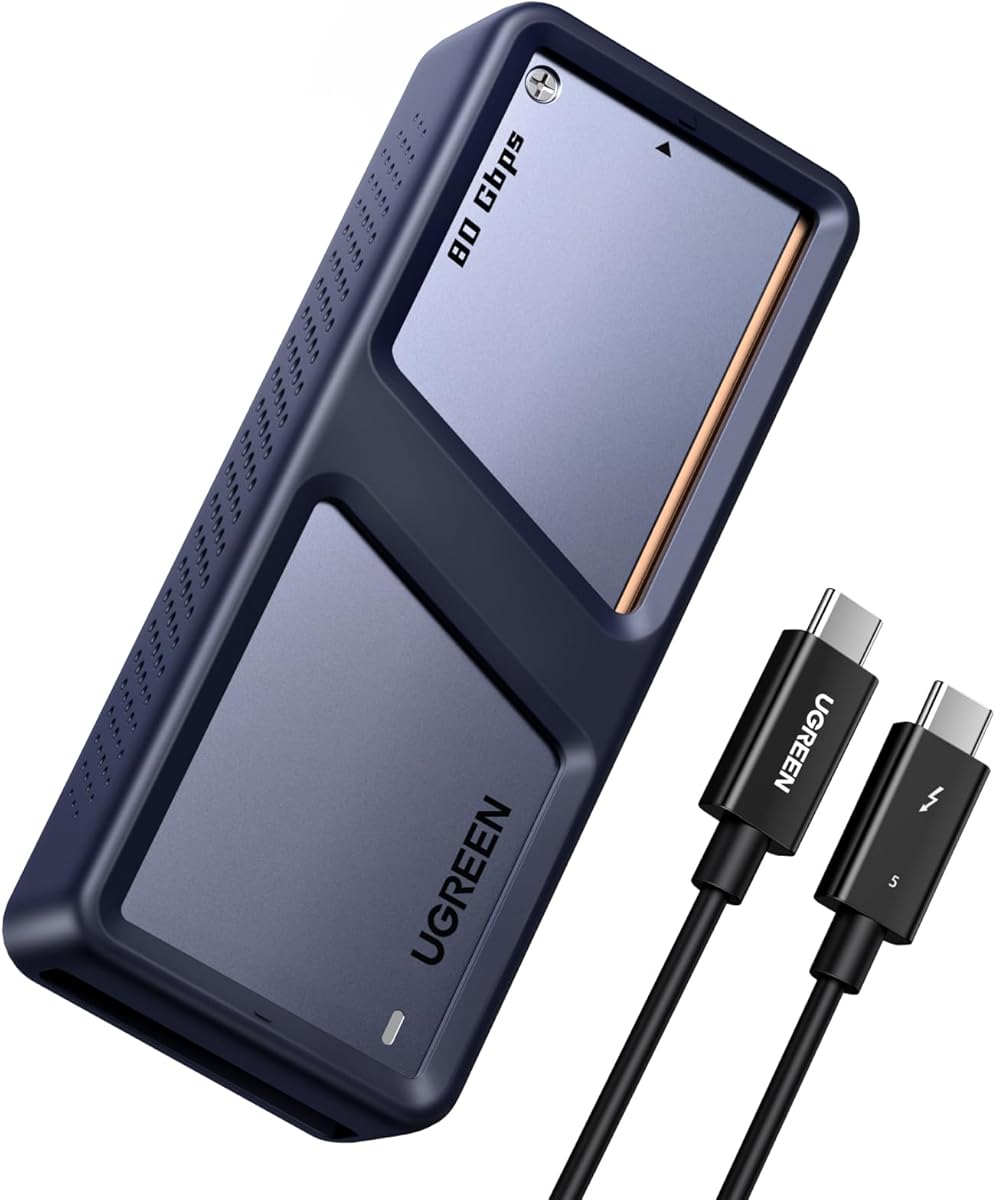
| UGREEN NVMe SSD enclosure | Turns a spare drive into external storage or a cloning tool | Anyone migrating a system drive | Cheap and genuinely useful during upgrades |
| Sabrent USB 3.0 SATA adapter cable | Connects a bare 2.5-inch drive for cloning or recovery | Budget drive swaps and data rescue | Basic but does the job for occasional use |

Samsung 990 PRO NVMe SSD
This suits anyone with a free M.2 slot who wants fast, permanent internal space for games, creative apps, or a Windows install. Skip it if your laptop has no accessible slot or you only need archive storage, where a cheaper SATA or external drive makes more sense.
Crucial MX500 SATA SSD
A sensible choice for older desktops and laptops that have a 2.5-inch bay and won't benefit from NVMe speeds. Skip it if you are building a new machine or running heavy workloads where NVMe makes a real difference.

Samsung T7 Shield portable SSD
Ideal for laptop owners who can't open the case and want fast, rugged plug-in storage plus a backup target. Skip it if you need huge capacity on a tight budget, where a portable hard drive gives more terabytes per euro.
WD My Passport portable hard drive
Best for archiving photo libraries, video projects, and old documents where capacity matters more than speed. Skip it for anything you work on directly, because spinning drives feel slow for editing and game installs.

UGREEN NVMe SSD enclosure
Useful during upgrades, letting you clone your old drive or repurpose a spare NVMe stick as fast external storage. Skip it if you don't own a loose NVMe drive and have no plans to migrate one.
Sabrent USB 3.0 SATA adapter cable
A cheap tool for connecting a bare 2.5-inch drive to copy files or clone before a swap. Skip it if you already have an enclosure, which does the same job with better protection.
Common mistakes
- Buying a drive before checking which slot type and size your machine actually supports.
- Deleting files to free space without a backup, then discovering the Recycle Bin was the only copy.
- Installing a new SSD but leaving the old one as the boot drive, so nothing actually changes.
- Storing the only copy of important files on an external drive that lives in the same bag as the laptop.
- Ignoring drive health, so a nearly full, failing disk gets filled again instead of replaced.
FAQ
Can I add storage to a laptop without opening it?
Yes, an external SSD over USB is the simplest route and needs no tools. It won't help with Windows updates or system files, but it takes media, projects, and backups off your main drive.
Is it better to upgrade the SSD or buy an external drive?
Upgrade internally if you have a free slot and want speed and convenience, especially for games and apps. Go external if the machine is sealed, under warranty, or you mainly need archive space.
How much free space should I leave on my main drive?
Aim to keep at least 10 to 15 percent free so Windows has room for updates, temporary files, and virtual memory. A drive that stays above 90 percent full tends to slow down and behave unpredictably.
Will a second drive slow my PC down?
No, adding storage doesn't reduce performance, and moving heavy files off the boot drive can help. Just make sure the new drive is connected properly and recognised in Disk Management before you rely on it.
Can I move my installed programs to a new drive?
Some apps let you change their install location, but many Windows programs expect to stay on the system drive. For big libraries like games, use the launcher's own move or library-folder feature rather than dragging files.
Do I need to format a new drive?
Internal drives usually need initialising and formatting in Disk Management before Windows shows them in File Explorer. External drives often come pre-formatted, but check the file system if you plan to use them with a Mac as well.
Start with cleanup and moving media, then add a drive only once you know how much space you actually need. A modest SSD plus a sensible backup routine will keep a PC comfortable for years.
As an Amazon Associate we earn from qualifying purchases.
Related guides
More step-by-step guides on this topic are collected in the technology archive.